
Blog
How to set up the VPN on your phone: from the bot button to connected
You've started the free trial in the bot and tapped «Connect». A few minutes and five steps are left. Here is each of them on screenshots from an Android phone; on an iPhone the steps are the same.
In short, here's what happens. The bot gives you a subscription — a personal link with a list of servers. To connect, you need an app that can read such links: you install it from the app store and add the subscription to it with one tap. Why it works this way — in the article «Subscription VPN».
You don't need to send the subscription link to the bot. It goes into the app — with a button on the connection page, as shown below.
Step 1. Open the connection page
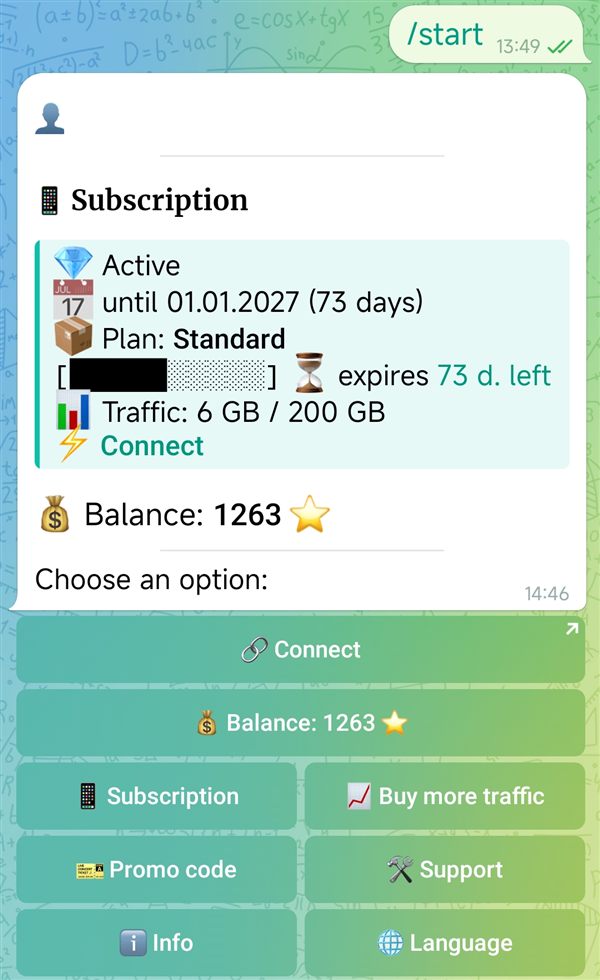
In the bot, tap «🔗 Connect» — the button is in the main menu and in the free trial message. The «⚡ Connect» link in the subscription card does the same.
Telegram will warn you that the link leads outside the app and ask whether to open it — tap «Open». This is Telegram's usual check for any link. Your personal connection page will open in the phone's browser.
Step 2. Install the app
The page detects your phone — iPhone or Android — and shows the apps for it under «Installation». The first one is the recommended app: it's marked with a dot and already selected, so we'll go with it. If your device was detected wrong, pick yours in the switch to the right of the heading. If the page opened in the wrong language, tap the flag button at the top.
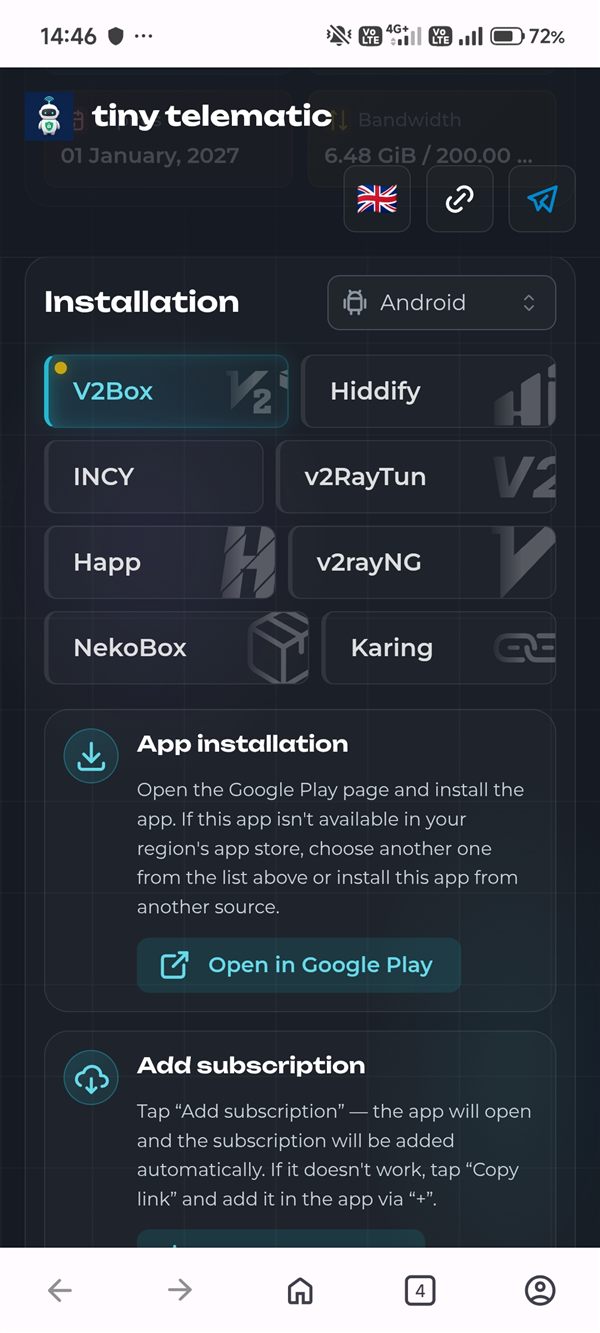
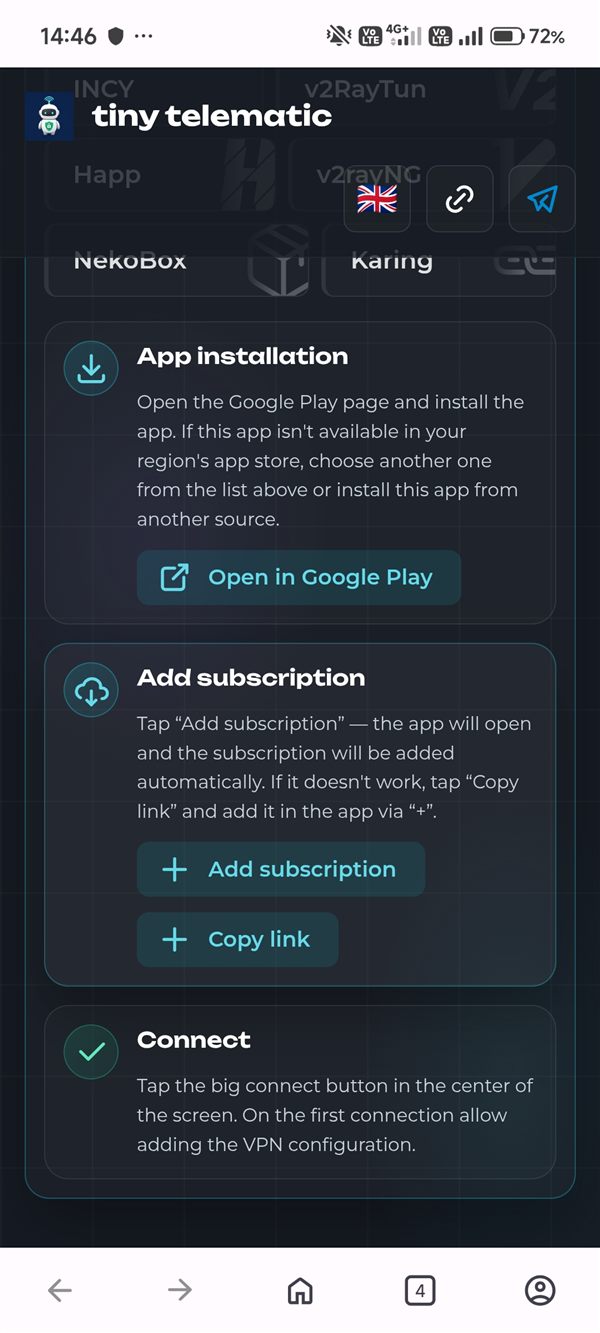
Below the list there are three blocks — «App installation», «Add subscription» and «Connect», one for each of the next steps.
In «App installation», tap «Open in Google Play» (on an iPhone — «Open in App Store») and install the app.
- Go to the store with the button on the page, not through search. Stores have many apps with similar names and icons — the button leads exactly to the right one.
- The app isn't available in your country's store — pick another one from the list at the top of the page: they all work with your subscription.
- You don't need to open the app after installing it yet.
Step 3. Add the subscription to the app
Go back to the browser, to the connection page, and in «Add subscription» tap «Add subscription». If the phone asks whether to open the app, allow it. The app will open by itself and the subscription will be added: you'll see a list of servers.
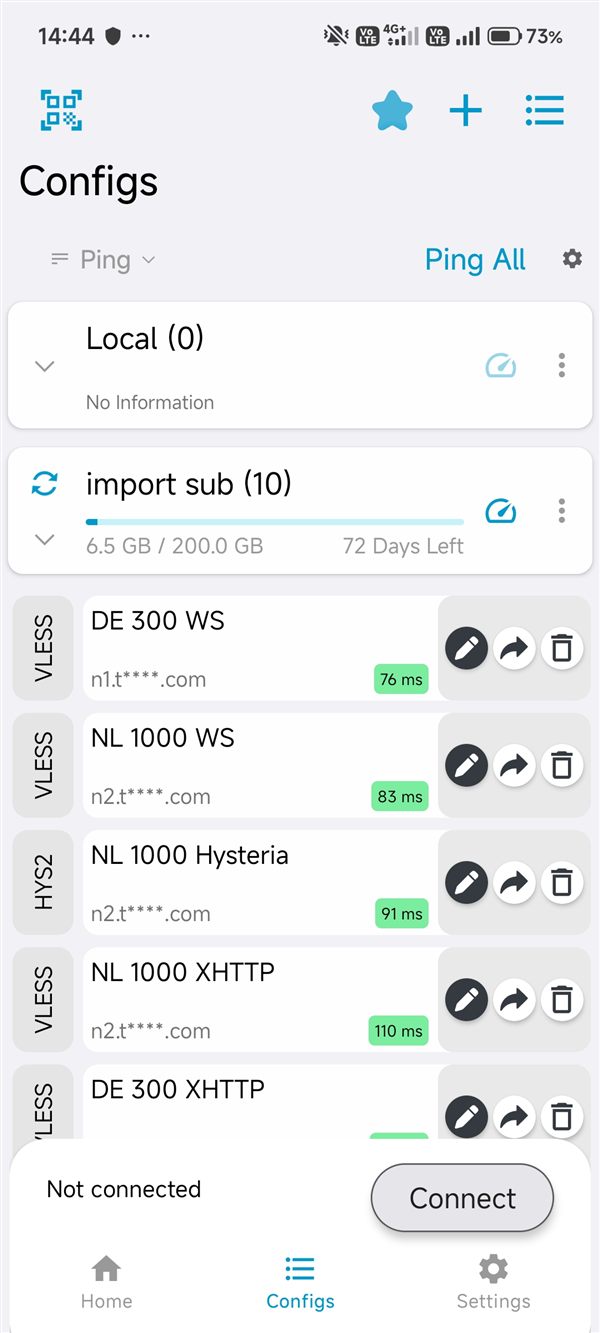
The subscription row shows the traffic used and how many days it has left, with the servers below. A server's name has the country and the connection method (WS, XHTTP, Hysteria); the number next to it is the latency: the lower, the faster the response.
The app didn't open? On the connection page tap «Copy link», open the app, tap «+» at the top and choose adding from the clipboard.
Step 4. Turn on the VPN
Tap any server in the list — it gets highlighted — then the «Connect» button at the bottom of the screen. The same button is on the app's home screen.
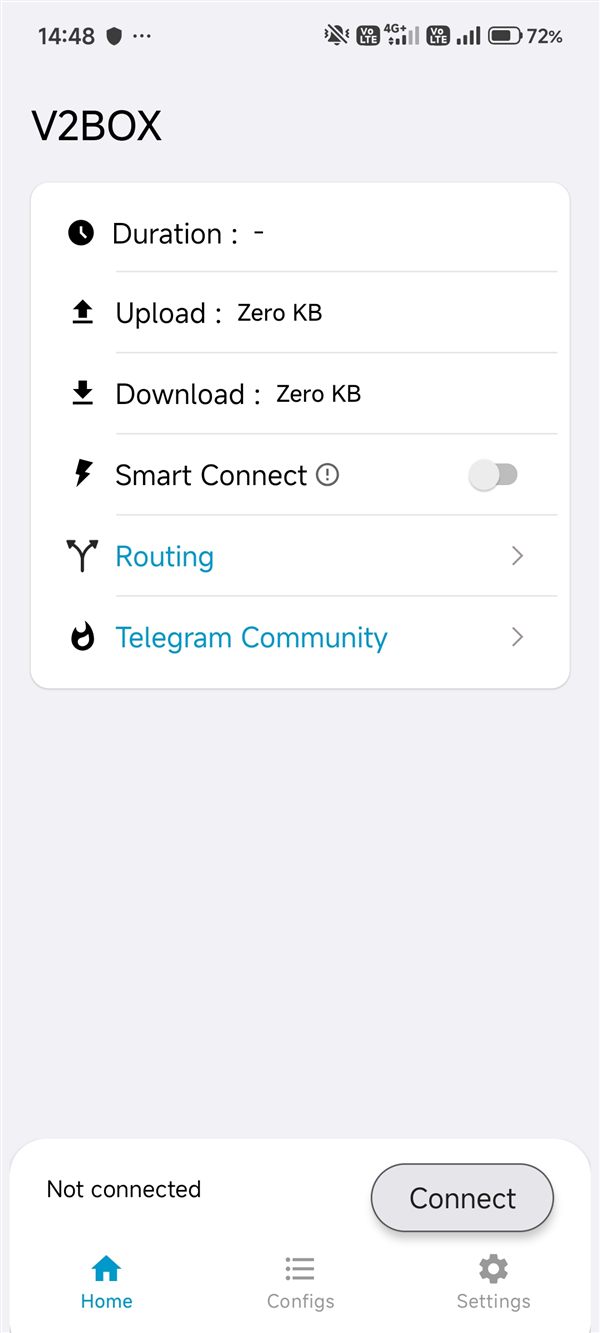
On the first connection the phone asks for VPN permission — a standard system prompt, once:
- Android: «Connection request» — tap «OK»;
- iPhone: «Allow VPN configurations» — tap «Allow» and confirm with your passcode or Face ID.
Got an error when connecting? Most often it means another VPN app is installed on the phone and has taken over the connection exclusively: only one VPN works on a phone at a time. Turn off the old VPN (if you want, you can bring it back later without any trouble). Step by step — on the Android setup page.
Step 5. Check that it works
Instead of «Not connected» you'll see the connection time, and a VPN icon will appear at the top of the screen. Open any site or app that didn't open without the VPN — it should work now.
From now on you turn the VPN on and off with the same button in the app. The subscription updates itself: if we add a server, it appears in the list without you doing anything.
If something went wrong
- A server won't connect — pick another one in the list: servers use different technologies, and on some networks some of them don't get through.
- Connected, but sites don't open — turn the VPN off, pick another server, turn it on again.
- The server list is empty or outdated — update the subscription in the app: the refresh icon in the subscription row.
- On a computer or TV — the subscription is the same, and the steps for each platform are in Setup.
Didn't work out — tap «🛠️ Support» in the bot or write to support@tinytelematic.com: we'll help.
Your subscription is personal. Anyone with the link connects on your behalf, so don't post it or forward it to strangers. If the link got into the wrong hands, contact support.